¶ FluidDial WiFi
¶ Overview
The FluidDial WiFi fork adds wireless connectivity to the FluidDial pendant, allowing it to communicate with FluidNC over WiFi using WebSockets instead of a physical UART serial cable. This is fully compatible with both the M5Dial and CYD pendant hardware.
Users can switch between WiFi or Wired (UART) mode at any time — the selection is persisted and survives reboots.
¶ Full Feature Parity with UART
- SD card file browsing and execution over WiFi
- Macro retrieval and execution
- Alarm handling with soft-reset confirmation dialog
- Homing, probing, and all standard pendant functions
¶ Getting Started
- Flash the firmware to your pendant
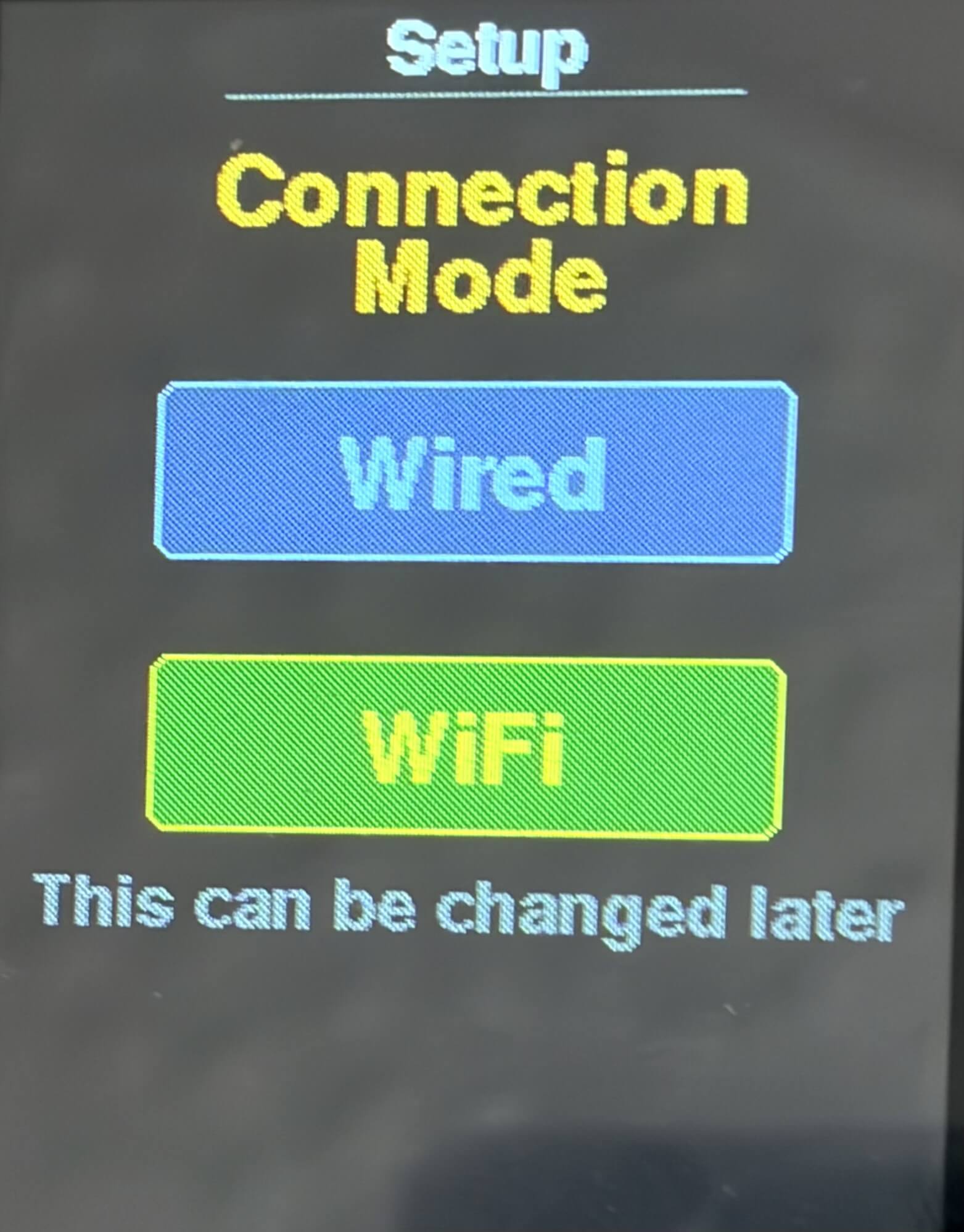
- On first boot, select WiFi or Wired as your connection mode
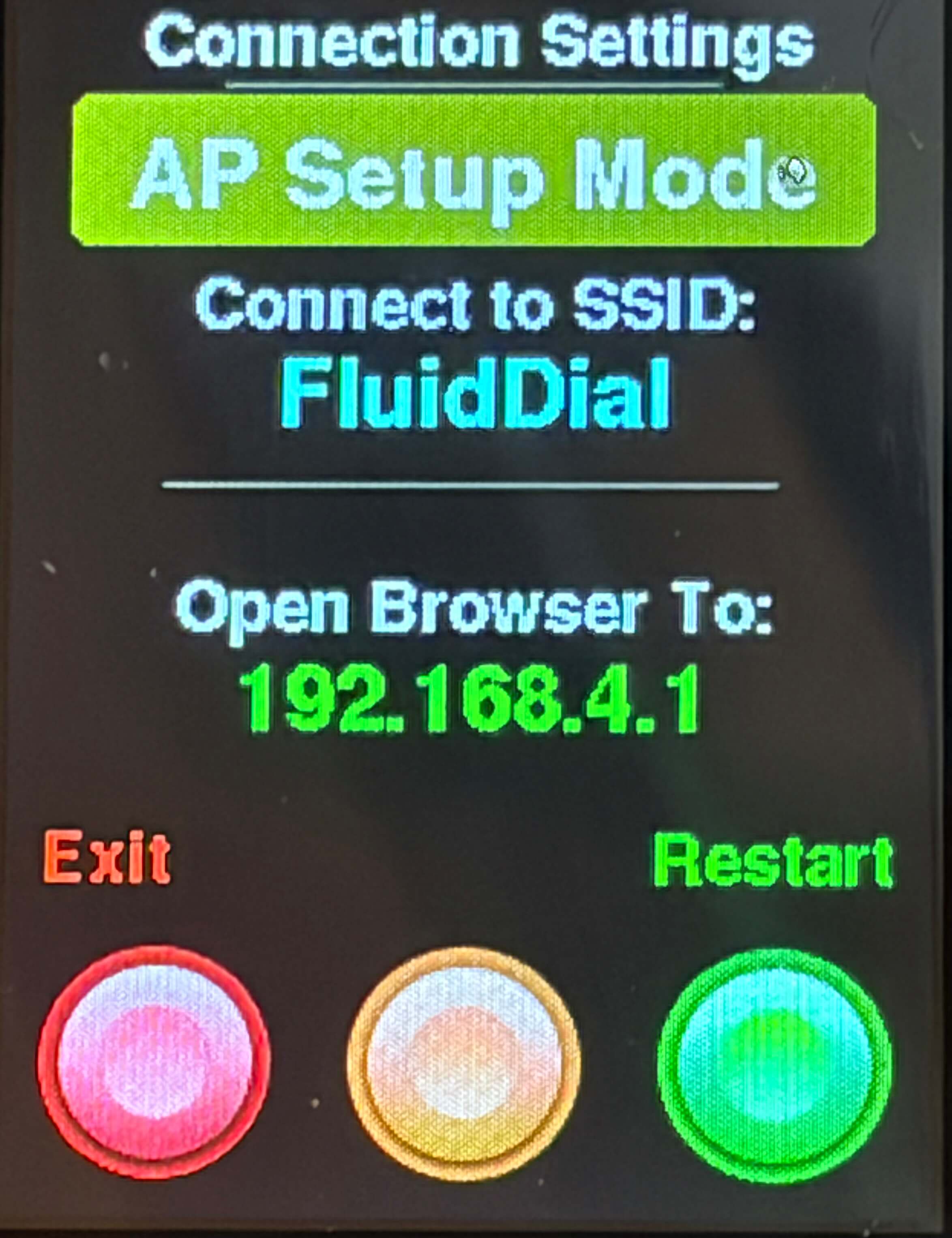
- If WiFi is selected, the pendant enters AP mode — connect to the "FluidDial" network from your phone or computer
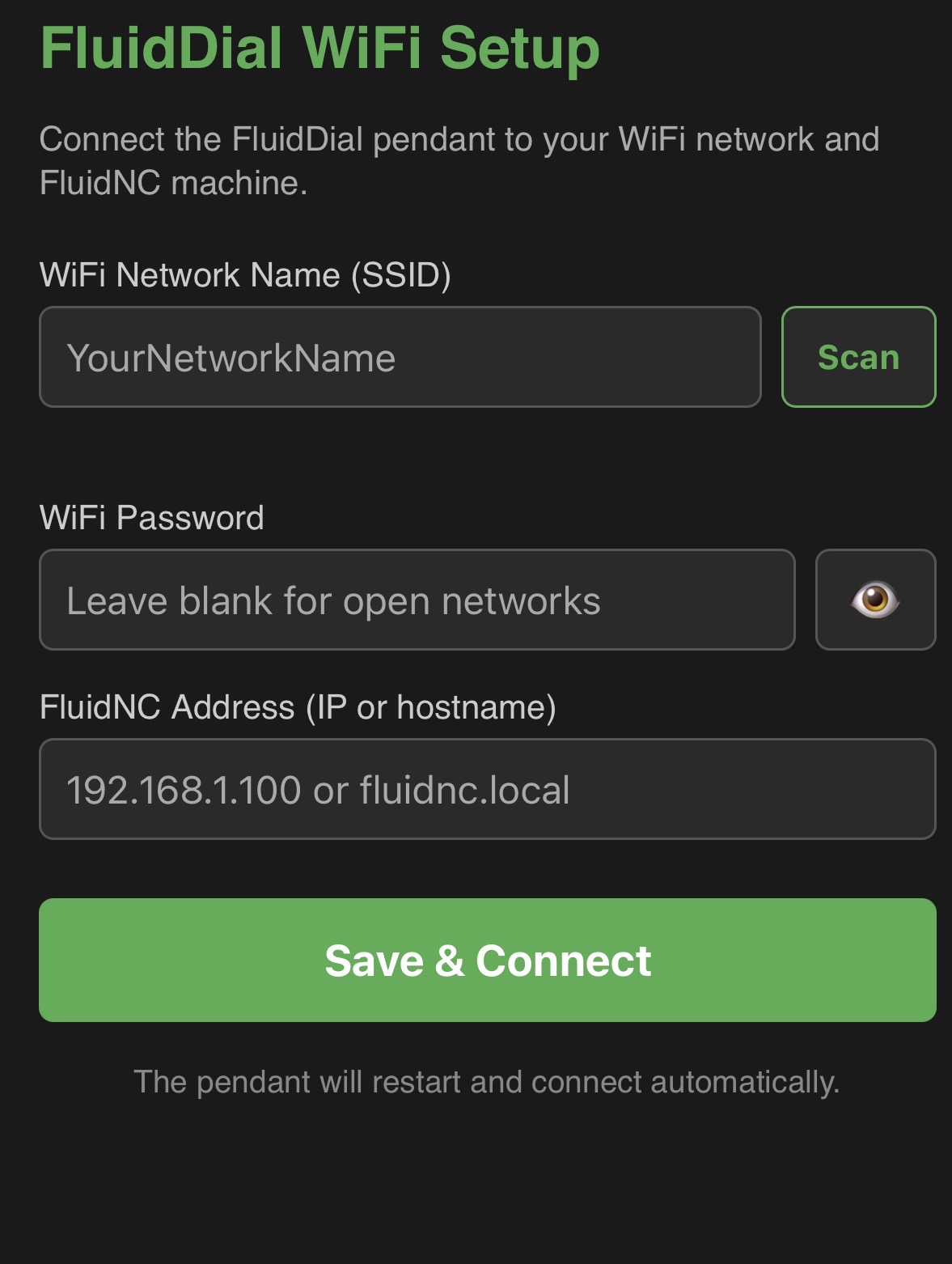
- Open 192.168.4.1 in a browser, scan for your network, and enter your WiFi credentials and FluidNC hostname
- The pendant saves the configuration, connects to your network, and establishes a WebSocket connection to FluidNC
¶ First Boot Setup
- On first boot, a setup wizard prompts the user to choose between WiFi or Wired mode
- The selection can be changed later from the Connection Settings screen
¶ WiFi Configuration (Captive Portal)
- When WiFi mode is selected, the pendant starts an open access point named "FluidDial"
- Connect to the AP and navigate to 192.168.4.1 in a browser to open the configuration portal
- The portal includes an SSID scanner that lists available networks
- Enter your WiFi password and the FluidNC hostname or IP address
- Previously saved credentials are pre-populated if available
Note: If connecting to FluidNC's default AP, use the following default FluidNC values:
SSID: FluidNC
Password: 12345678
Hostname: 192.168.0.1
¶ mDNS Support
- Connect to FluidNC using a hostname (e.g.
fluidnc.local) instead of an IP address - The pendant automatically resolves
.localhostnames via mDNS
¶ Connection Status Display
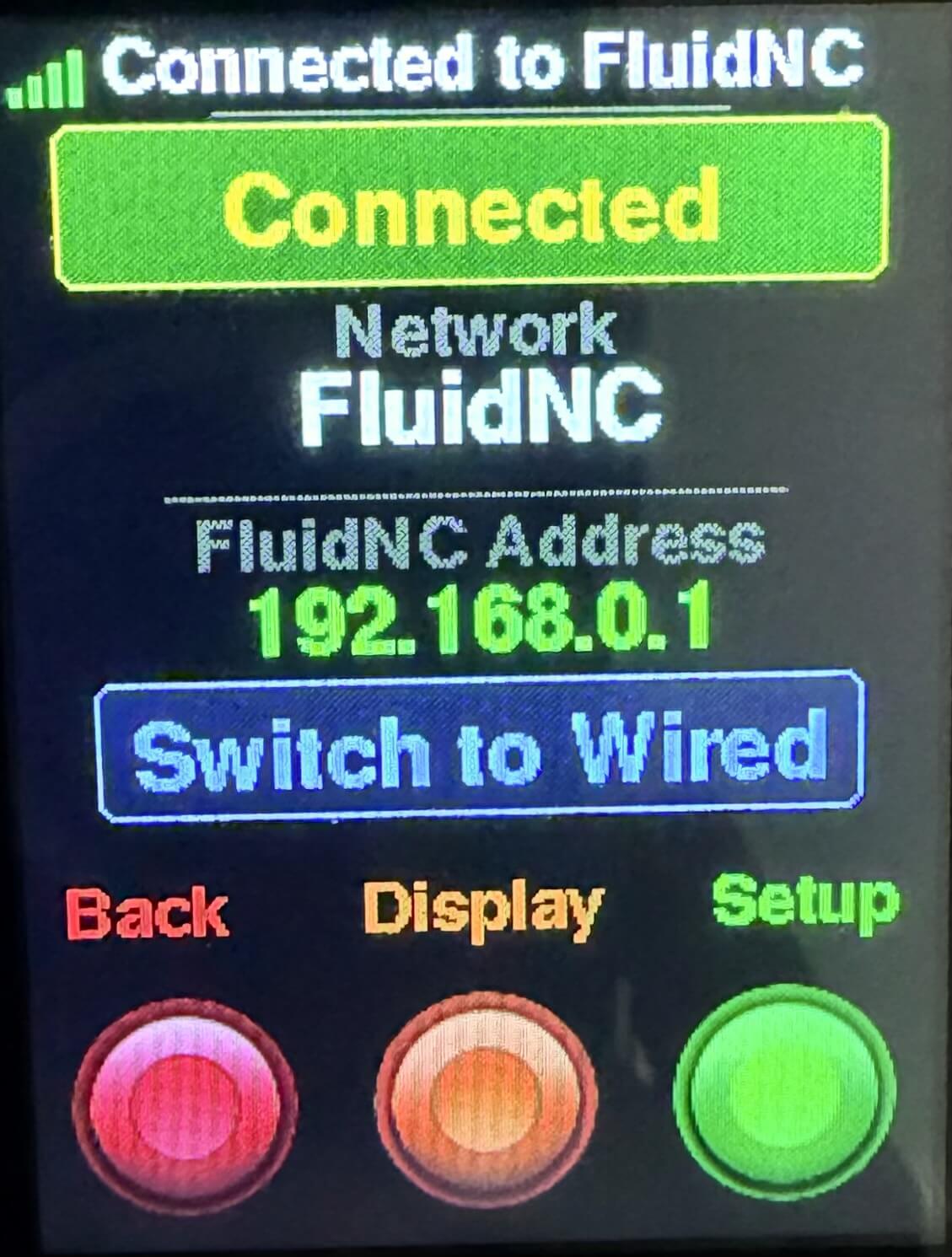
- Displays the current connection mode and connected network name and FluidNC address when in WiFi mode
- Shows WiFi error messages (e.g. incorrect password) with automatic retry
- Allows switching between WiFi and Wired modes
¶ WiFi Signal Strength Indicator
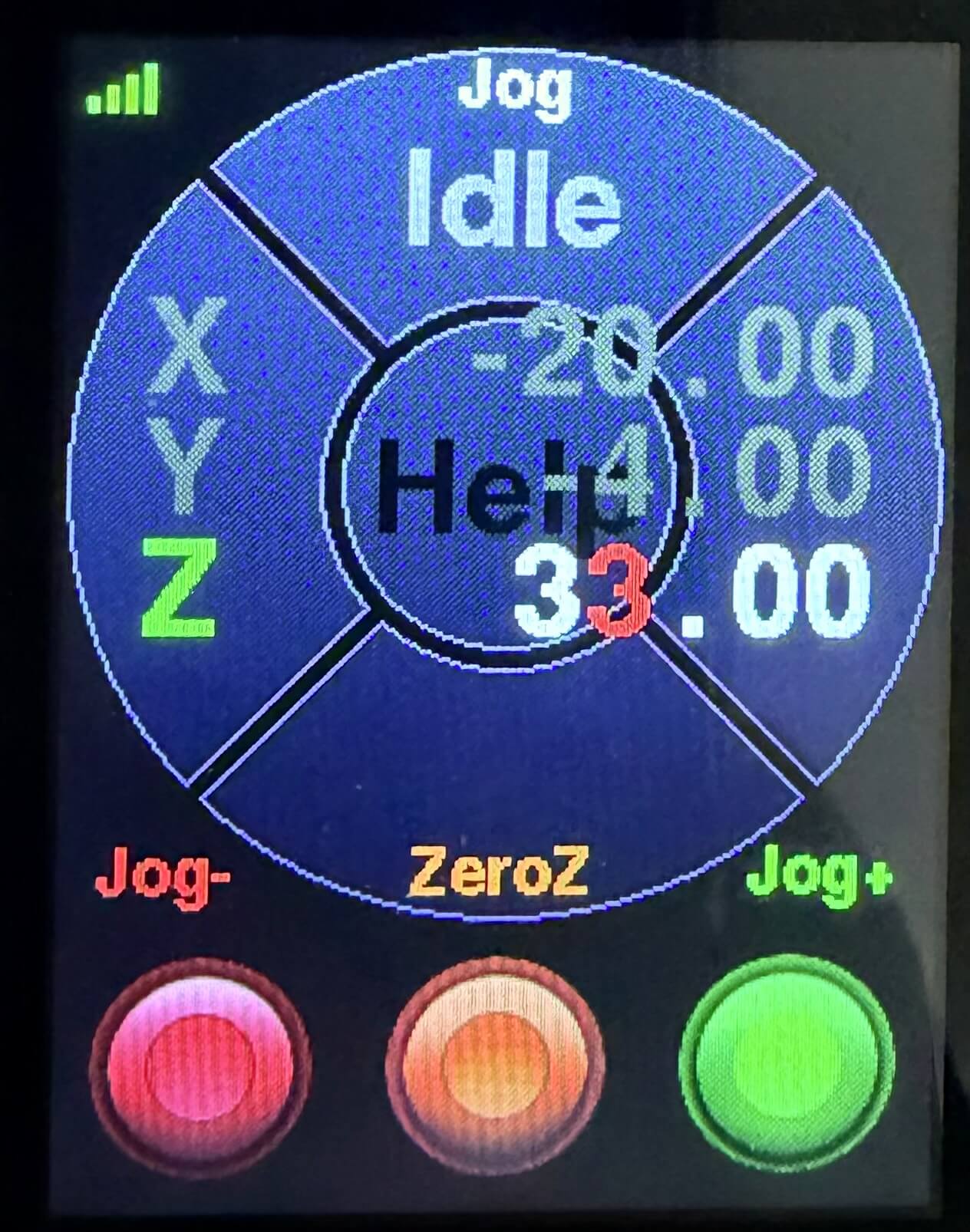
- Signal strength is displayed on the main menu screen as 0–4 bars
- Qualitative label shown in settings: Excellent, Good, Fair, Weak, or None