The WiFi version of FluidNC can execute commands and manage files via HTTP.
¶ REST API
This API is not REST-ful in the strict sense; REST is used in the colloquial sense of an API that is driven by sending HTTP GET and POST requests.
¶ Hostname
HTTP requests can be sent to http://fluidnc.local (or HOSTNAME.local where HOSTNAME is the value of the NVS setting $hostname) or to http://IP_ADDRESS (the dotted decimal IP address assigned to FluidNC). https is not supported.
¶ Volume/File/Path
FluidNC supports two different file storage devices (volumes)
- LocalFS is a volume on the same FLASH chip that contains the FluidNC firmware, using the LittleFS format. Its total space is rather limited because most of the FLASH is used for the firmware. For typical systems with a 4MB FLASH, LocalFS only has enough space for the WebUI index.html.gz file plus a few YAML config files, preferences files, and a few short macros. It is generally not good for storing or executing large GCode files.
- SD is a volume on a plug-in SDCard, with much more storage space than LocalFS. This is where you store GCode files for later execution.
A path is a /-separated list of folders leading to the location of a file, for example “folder1/folder1”. The volume to use depends on the HTTP endpoint (files for SD or uploadfor LocalFS) but you can override that by including the volume name at the start of the path, for example “/sd/folder1/folder2” or “/localfs/folder1/folder2”. A path starting with an explicit volume name applies to that volume regardless of which HTTP endpoint is used.
¶ Encoding
As with any HTTP URL, certain special characters must be encoded with %NN notation according to the normal rules of the web. For example the space character is encoded as %20
¶ Endpoints
| Endpoint | Method | Purpose |
|---|---|---|
/ |
GET | If $HTTP/DefaultUI names a WebUI that is present under $HTTP/UIDir, redirects to /ui/NAME/. Otherwise fetches the WebUI application for execution in a browser from either LocalFS:/index.html or LocalFS:/index.html.gz (usually the latter for space reasons). If neither of those files is present on the localfs filesystem, or if the URL argument “forcefallback=yes” is present, returns a rudimentary web page that will let you upload files to localfs. “forcefallback=yes” also skips the $HTTP/DefaultUI redirect. |
/ui/ |
GET | [since v4.1.2] Lists the WebUIs in the subdirectories of the directory set by $HTTP/UIDir (default /sd/ui). |
/ui/NAME/ |
GET | Fetches the WebUI in subdirectory NAME of $HTTP/UIDir, from its index.html or index.html.gz (for NAME localfs, the WebUI in the root of LocalFS), and sets a uiSession cookie with Path=/ui/NAME/. A WebSocket upgrade request to the same URL opens a WebSocket in that session. See Multiple WebUIs. |
/ui/NAME/command/ui/NAME/command_silent |
ANY | Like /command and /command_silent, in the session of the WebUI in NAME. |
/ui/NAME/PATH |
GET, PUT | GET fetches a file in the WebUI's subdirectory (the root of LocalFS for localfs). PUT writes one, with the request body as the file's contents, creating any missing subdirectories; it answers 201 for a new file, 204 for a replaced one, and 503 while the machine is moving if $HTTP/BlockDuringMotion is on. |
/command |
GET |
Executes GCode or FluidNC $ or [ESP commands. If there is a URL argument “plain=COMMAND”, COMMAND is executed as if it were sent over a serial channel and any resulting text (up to the next “ok” or “error…” line) is returned as the HTTP response. If there is a URL argument “cmd=COMMAND” or “commandText=COMMAND", COMMAND is executed and the response depends on what is in COMMAND. If COMMAND begins with either “[ESP” or “$/”, the behavior is the same as with “plain=COMMAND”, returning the result in the HTTP response. Otherwise, the command is started and the HTTP request returns immediately, with any later output from the command sent back via the associated websocket. This complicated behavior accommodates several different versions of WebUI, and accounts for the fact that some GCode operations can take arbitrarily long to complete (hence the use of a websocket to return later status). Example: http://fluidnc.local/command?cmd=G0X10 TBD: Explain the PAGEID argument that directs the response to the correct websocket. |
/command_silent |
ANY | Like /command, but any subsequent websocket response text is suppressed. |
/files |
GET |
LocalFS file operations according to the URL arguments:
The response value of /files (after performing ACTION or if no action argument is present) is a list of files in the path. That response can be suppressed by including an argument “dontlist=yes”. The list reflects the state of the filesystem after the action. Example: http://fluidnc.local/files?path=folder1/folder2&filename=foo.nc&action=delete |
/files |
POST | Upload a file to LocalFS |
/upload |
GET | SD card file operations - same as with /files but operates on the SD filesytem |
/upload |
POST | Upload a file to the SD filesystem |
/updatefw |
GET | After a firmware update with /updatefw POST, returns a response indicating the status of that update. If the update was successful, FluidNC reboots 1 second after responding. |
/updatefw |
POST | Initiates an Over The Air (OTA) firmware update |
/feedhold_reload |
GET | Sends a feedhold (like !) to pause ongoing GCode execution, then redirects to the “/” endpoint. This is useful when an attempt to refresh WebUI by reloading index.html.gz is blocked due to ongoing motion. |
/cyclestart_reload |
GET | Sends a cyclestart (like ~) to resume previously-paused GCode execution, then redirects to the “/” endpoint. Typically what will then happen is that new reload will again be blocked. Essentially this is a way to undo a previous /feedhold_reload and get back to the state that existed before it, with GCode running. |
/restart_reload |
GET | Sends a reset (like CTRL-X) to stop GCode execution, then redirects to the “/did_restart” endpoint. This is useful when an attempt to refresh WebUI by reloading index.html.gz is blocked due to ongoing motion, and you want to cancel that ongoing activity. |
/did_restart |
GET | Responds with a message saying that the GCode program was stopped. |
/path/to/filename |
GET | Downloads the named file, defaulting to the localfs volume. Example: http://fluidnc.local/config.yaml or http://fluidnc.local/sd/myprogram.gcode |
¶ WebSockets
To be supplied
¶ WebDAV
FluidNC implements WebDAV starting with FluidNV version 4. WebDAV is a standard HTTP-based API for file management and access. The HTTP endpoints are /flash to access LocalFS files and /sd to access SD files. The HTTP method controls the action to be performed. The complete URL is, for example, /http://fluidnc.local/flash/resource_path where /resource_path is a path to a resource (file or folder) within the filesystem. If /resource_path is omitted, the resource is the filesystem's root folder.
| Method | Purpose |
|---|---|
| PROPFIND |
Returns an XML-encoded list of file names, sizes, and modification dates. If the resource is a regular file, the list describes that one file. If the resource is a folder, the result depends on the value of the “Depth: XX” header option:
|
| GET | Returns the contents of the resource, which must be a file, in the HTTP response. |
| HEAD | HEAD is like GET but it does not return the contents of the file, only metadata about the file's existence, etc. It can be used to check whether a file is present without actually downloading all of its contents. |
| PUT | Creates a new resource file with contents supplied by the HTTP transaction. |
| MKCOL | Creates a new resource folder. |
| MOVE | Given a “Destination: PATH” header option, moves or renames to the named resource to the destination. |
| COPY | Given a “Destination: PATH” header option, copies to the named resource to the destination. |
| DELETE | Deletes the named resource. |
| OPTIONS | Returns a list of the supported methods for the resource. |
¶ Using WebDAV with Windows
You can use Windows Explorer to manage FluidNC files by mapping a network drive to, for example, http://fluidnc.local/sd.
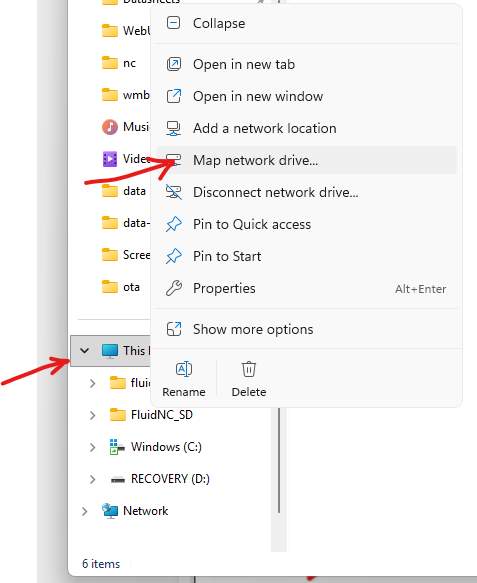
To set it up, open Windows Explorer, scroll down to the bottom of the left sidebar, and right-click on This PC. Then select Map Network Drive from the popup menu.
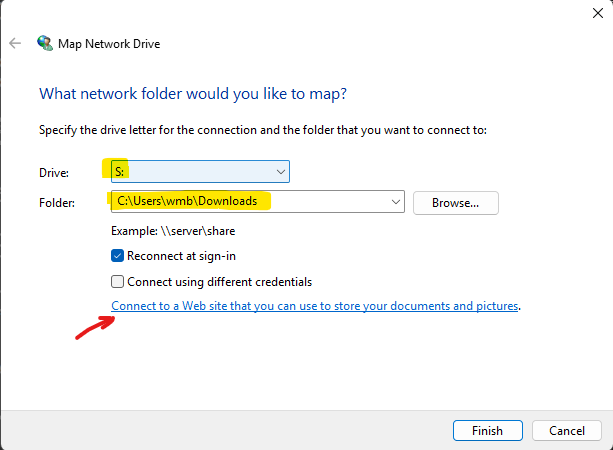
That will open up a “Map Network Drive” dialog where you can choose a drive letter (I used S: below as a mnemonic for “SD”) and enter a folder name. I am not sure what the folder name is for, but a valid folder must be entered otherwise the process will fail later. After choosing Drive and Folder, click the “Connect to a Web site…” link.
That starts up a Wizard that asks you question after question. The first one is a boring “Welcome” dialog that does nothing, so click on the Next button to get to the next boring “Where do you want to create this network location” dialog. On my machine the only option it presents is “Choose a custom network location” so select that and hit the Next button.
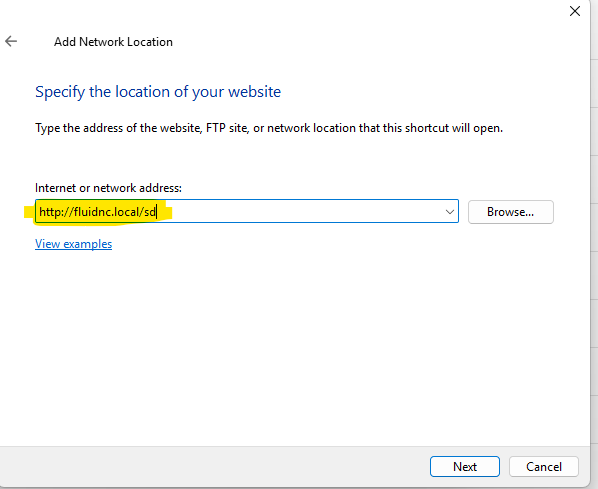
Then you get to the “Specify the location of your website” dialog, where you can enter the FluidNC WebDAV address (the one for SD in this case). Then click Next.
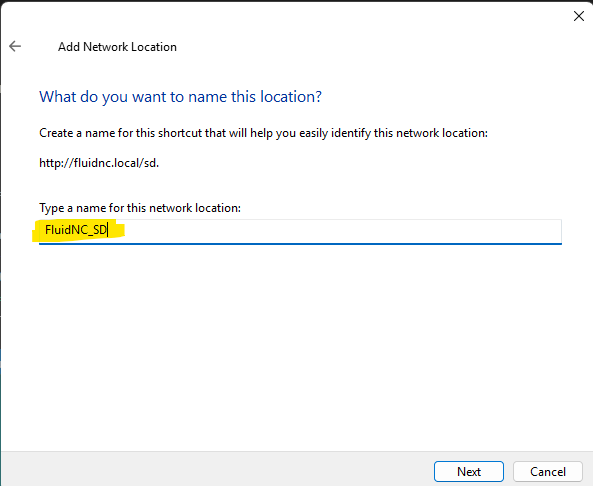
Finally, you get to enter a name for the connection in the “What do you want to name this location?" dialog. That name will show up in the Explorer sidebar under “ThisPC”. I used the name “FluidNC_SD”.
After you click Next it will try to access the FluidNC WebDAV server to make sure everything works, so FluidNC needs to be running at this point. If everything is okay, you will then see a “Completing the Add Network Location Wizard” dialog congratulating you on your success. Go you! Finish out of that dialog and rour share will appear in Explorer, where you can manage FluidNC files.
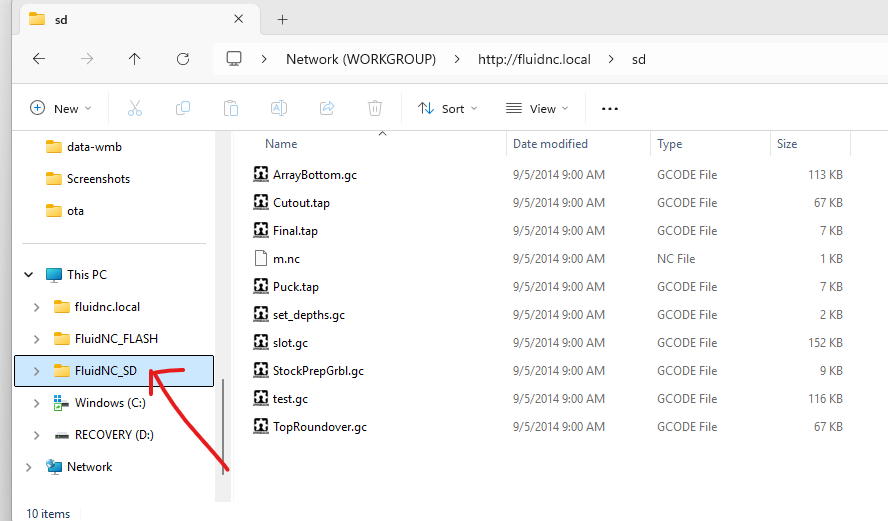
Repeat the process with /flash instead of /sd and you can access FluidNC files from the LocalFS filesystem.
Easy, right? (Hint: documenting it was not.)
¶ Using Windows Command Line
Enter this in a windows console, like PowerShell. This will create a Z drive of the SD filesystem on the FluidNC controller.net use Z: http://192.168.1.32/sd
¶ Using WebDAV with MacOS
Use http://fluidnc.local/sd/ or http://fluidnc.local/flash/ as the server address.
¶ Using WebDAV with Linux
You can use WebDAV with Linux by mounting a share using the davfs2 client for full filesystem integration, or by connecting through your file manager for a more temporary, browse-only connection. Consult the internet for more details.
¶ Accessing WebDAV with the Curl Command Line Utility
curl is a command line program that can perform HTTP operations.
Here is a good list of examples for accessing WebDAV from curl
Instead of “http://example.com/dav” as shown in that document, you would use either “http://fluidnc.local/sd” or “http://fluidnc.local/flash”. FluidNC does not support authentication, so omit the “-u user:pass” portion of the command.